


Banner Health
3.9985.00 Reviews
App Specs
- Version
- 1.73
- Updated On
- License
- Free
- Downloads
- 100,000+
- Developer
- Banner Health
- Categories
- Medical
- Platform
- Android
Screenshots
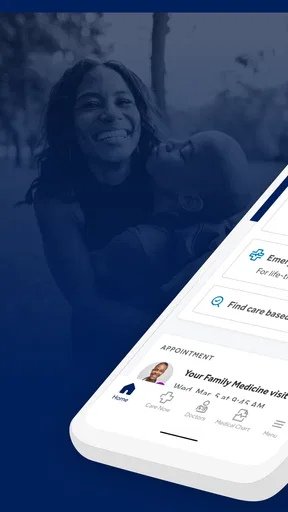
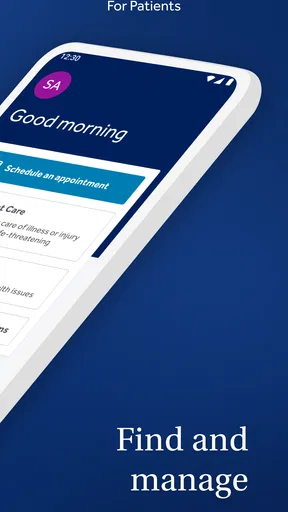
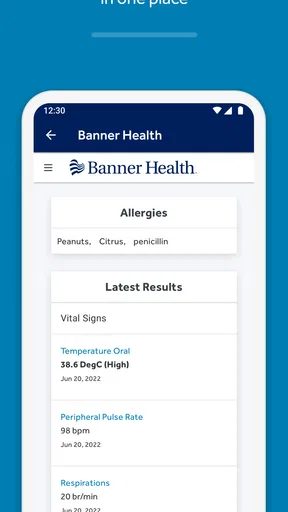
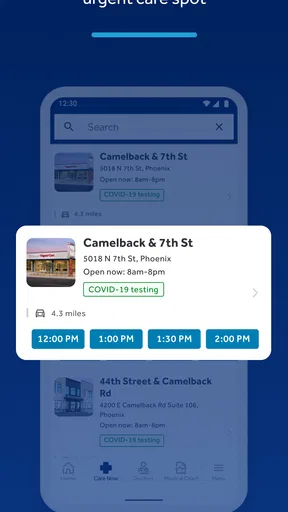
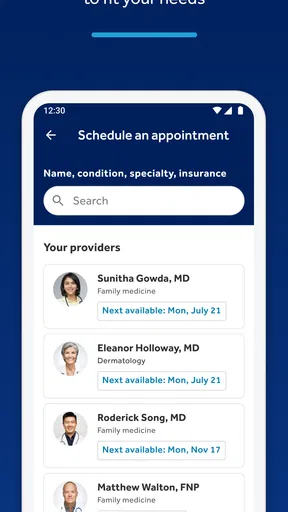
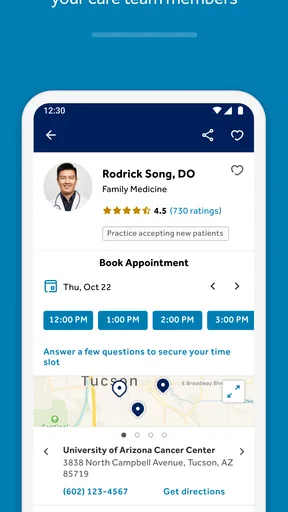
 Analysis by AppCompare
I approached Banner Health as a practical medical app rather than something to browse casually. Its purpose is straightforward: it is meant to make contact with Banner Health and everyday healthcare tasks feel less scattered. That sounds simple, but medical apps are judged differently from entertainment apps. When I open one, I usually have a specific need, limited patience, and little interest in learning a complicated system. My first question is whether it helps me move forward without adding confusion.
Banner Health is free, developed by Banner Health, and available to an Everyone audience. It has been on the market since January 17, 2019, and the current version is 1.73. Its medical focus makes it most relevant to people already connected with Banner Health, or to households that regularly need a clearer way to manage healthcare-related tasks. I would not treat it as a replacement for urgent medical help, but I can see its value as a central place to begin routine interactions with a healthcare provider.
Where the experience usually gets stuck
The first source of friction is often not the app itself but the expectation that installing it automatically solves access. A person may download it while trying to find an appointment, check a health detail, or contact a care team, then discover that the useful part of the experience depends on entering the right account information and reaching the correct Banner Health record. That is a normal hurdle for a healthcare app, but it feels more serious when the user is already worried or pressed for time.
I recommend starting with the same identifying details used for your Banner Health relationship rather than creating several different combinations of names, email addresses, and passwords. Small differences can matter: a nickname instead of a legal name, an old email address, or a family member's details can make an otherwise correct attempt look unsuccessful. If you are setting up access for someone else, especially a child or an older relative, decide in advance whose account you are trying to use. Switching between people halfway through a task is an easy way to lose track of what you were doing.
Another common sticking point is assuming that every healthcare action has the same route. A request involving an existing appointment is different from a general question, and a record-related task is different from finding basic provider information. I found it more useful to pause at the first screen and identify the exact goal before tapping around. In a medical app, random exploration can create duplicate requests, send a message to the wrong place, or leave you unsure whether anything was actually submitted.
The app's average rating is 3.9 from around 2.2 thousand ratings, with close to a thousand written reviews, and that mixed reception feels understandable for a service whose usefulness depends partly on account access and connected healthcare systems. A smooth session can be genuinely convenient, while a failed sign-in or missing connection can make the whole product feel unusable. I would read the rating as a reason to keep expectations practical, not as proof that the app is unsuitable.
What to check before blaming the application
When a healthcare app appears stuck, I first check whether the phone has a stable connection. A weak signal can affect sign-in, loading, and the final confirmation step, which is especially worrying when the screen does not immediately show whether a request went through. I also close and reopen the app before repeating an action. Repeated tapping is rarely helpful when the problem is a delayed response, and it can make it harder to know whether a request was sent once or several times.
Worth Reading Before You Choose

EA SPORTS FC Mobile 26 Is a Bigger Football Game, but It Takes Time

Flipboard Shows What News Apps Must Do Beyond the Feed

Switching to Android Auto Means Rethinking Your Driving Routine

Google Calendar Makes a Crowded Week Easier to Manage

Ludo King Makes the Most of the Minutes Between Plans

Baby Panda World Brings Quick Play to Modern Phones, but Its Game Library Feels Busy
I also check the device's date and time settings, available storage, and operating-system compatibility. Banner Health requires Android 9 or newer, so an older device may be the real limitation rather than a temporary app failure. Storage matters because a phone that is nearly full can behave unpredictably during updates or normal operation. These checks take little time and are more useful than immediately deleting the app, particularly if you are trying to preserve access information.
Notifications deserve a deliberate check as well. If you are expecting a reminder or a response, look at the phone's notification settings and confirm that alerts for the app are allowed. I would not assume that a missing notification means the underlying healthcare item is missing. Open the app directly and look for the current status instead. Notifications are convenient, but they should not be the only way you verify something important.
A calmer setup routine
My preferred setup approach is to install the app when I am not already in the middle of a stressful healthcare situation. I keep the phone connected to a reliable network, have my Banner Health account details available, and allow enough time to complete sign-in without rushing. If the app asks me to verify information, I enter it carefully rather than switching between multiple accounts or guessing at old credentials.
I would also make sure the app is updated through the normal app-store process before judging its behavior. The current version is 1.73, and keeping software current is a sensible first step when screens load incorrectly or a function behaves differently from expected. An update may not solve an account-side issue, but it removes one avoidable variable. After updating, I restart the phone and try one focused task instead of testing every section at once.
Privacy is another reason to prepare rather than rush. A medical app can involve information that I would not want displayed on a shared phone or visible through an unsecured notification. I use a device lock, avoid signing in on a public device, and check what appears on the lock screen. Those are general phone habits, but they become more important when the app is connected to personal healthcare information.
For a family, I keep a simple mental separation between the account holder, the patient, and the person holding the phone. Those may be the same person, but they do not always have to be. If a parent is helping a relative, I would avoid assuming that one login automatically gives the right access to another person's information. When the relationship is unclear, the safest route is to contact Banner Health through an official channel rather than repeatedly trying different credentials.
Recovering a workflow without starting over
One of the most useful habits with Banner Health is to break a failed task into stages. First, identify whether the problem is entering the account, loading the relevant area, completing the action, or confirming the result. Each stage points to a different next step. If sign-in fails, repeating the final submission will not help. If the action appears complete but the screen does not refresh, signing out immediately may make the situation harder to inspect.
When a page takes longer than expected, I wait briefly and look for a visible status change before tapping again. If I have already pressed a confirmation control once, I treat the request as potentially submitted until I can verify otherwise. This is particularly important for appointment-related or message-related actions, where duplicate attempts can create unnecessary confusion. I take a screenshot only when it does not expose information I would rather keep private, and I note the time of the attempt for later support.
If the app closes or returns to an earlier screen, I reopen it and check the relevant area before beginning again. A restart can clear a temporary display problem, but it does not necessarily cancel an action that reached the service. This is a small distinction, yet it prevents the common mistake of submitting the same request twice simply because the first confirmation was not displayed clearly.
Clearing temporary app data or reinstalling can sometimes help with a damaged local session, but I consider those later steps, not the starting point. Before doing either, I make sure I know how I will sign in again. In a medical context, convenience is not worth losing access at the moment I need it. If the problem is tied to account verification or patient matching, reinstalling the app is unlikely to fix the underlying issue.
When I contact support, I describe the exact point of failure instead of saying only that the app does not work. I include the phone type, operating-system version, app version, whether the issue happens on Wi-Fi and mobile data, and the screen or task involved. I do not send passwords, full medical details, or screenshots containing more personal information than necessary. This gives the support team something actionable while reducing unnecessary exposure of sensitive data.
When the app is not the right tool
There are situations where I would stop troubleshooting the app and use another route. If I have symptoms that may be urgent, I would seek immediate medical help rather than waiting for a login, message response, or app screen to load. A healthcare app can support routine communication, but it should never become a delay between a serious concern and appropriate care.
I would also use a direct phone contact when the matter is time-sensitive and the app is unavailable. That is not a failure unique to Banner Health; it is a sensible backup for any digital healthcare service. The app is most useful when the task can tolerate a little setup and when I have enough time to confirm what happened. It is less suitable as the only channel for something that must be resolved immediately.
Sometimes the issue is caused by the healthcare account or service rather than the phone. A missing item, an unavailable option, or a mismatch in personal details may require Banner Health staff to correct information on their side. In that situation, changing networks, reinstalling repeatedly, or trying another device will not necessarily help. I would document what I see and ask for the account or service to be checked.
This is where Banner Health differs from a general health tracker. A tracker can often work independently after installation because its main job is recording information on the phone. Banner Health is more dependent on an existing healthcare relationship and the systems behind it. Compared with a browser, the app can feel more direct on a phone, especially for repeat use, but a browser or phone call may be the better fallback when the app's account connection is the obstacle.
Who will get the most from it
I think the app makes the most sense for Banner Health patients who want a familiar mobile route for routine healthcare interactions. It can be useful for someone who dislikes calling for every small task, for a busy household coordinating ordinary care, or for a patient who prefers checking information on a phone rather than searching through old messages and paperwork.
It is also a reasonable choice for people who are comfortable doing a little setup and checking their account carefully. The benefit is not that it removes every step from healthcare administration. The benefit is that it can put those steps in a more accessible place. That distinction matters: users looking for a completely automatic experience may be disappointed, while users who want a practical starting point may find it worthwhile.
I would be more cautious about recommending it to someone who rarely uses smartphone apps, has an older device below Android 9, or does not have reliable internet access. A family member may still benefit if another trusted person helps with setup, but that arrangement should be handled carefully because medical information is involved. I would also skip relying on it alone if I need immediate answers or if my healthcare relationship is not with Banner Health.
What I would change about my own routine
After using a medical app like this, I would keep the workflow intentionally simple. I would open it for one purpose, complete that task, and verify the result before moving on. I would avoid changing account details during the same session unless necessary, and I would keep a backup contact method available for urgent or time-sensitive questions.
I would also review the app after a phone update rather than assuming everything remains identical. A system update can change notification behavior, storage conditions, or sign-in handling. If something suddenly stops working, I would compare the timing with recent phone or app changes and perform the basic checks before treating it as a permanent problem.
The most important practical lesson is to distinguish convenience from confirmation. A button press is not the same as a completed healthcare action. I look for a clear status, a visible record of what I requested, or another reliable indication that the task finished. If that confirmation is missing, I do not immediately repeat the action; I investigate first.
Banner Health has passed one hundred thousand installs, and its free price removes the financial barrier to trying it. That makes experimentation fairly easy, but I would still judge it by whether it fits my actual relationship with Banner Health. A free app that cannot connect to the right account is not useful to me, while a modestly convenient app that works reliably for my routine may save time over repeated calls.
My practical verdict
Banner Health is best understood as a mobile access point for Banner Health services, not as a complete personal medical adviser or an emergency channel. I appreciate the potential convenience, especially for people who already use Banner Health and want a phone-based workflow. The free cost, Everyone age rating, and broad availability make it approachable, but the real test is whether setup connects cleanly to the correct healthcare account.
My recommendation is positive with a clear condition: try it for routine tasks, prepare your account details, keep the app and phone current, and maintain a non-app backup for urgent needs. If a task fails, identify the exact stage where it stopped before reinstalling or submitting again. That approach avoids most avoidable confusion and helps separate a temporary phone problem from an account-side issue.
My bottom line: Banner Health is worth trying when you already receive care through Banner Health and want a practical mobile starting point, but it should complement—not replace—direct medical help and other contact options. I would recommend it to organized users who value convenience, while advising anyone with urgent symptoms, unreliable access, or a different healthcare provider to choose a more appropriate route.
Pros
- Easy access to appointments
- test results
- and medical records in one place.
- Secure messaging makes contacting your care team convenient.
- Prescription refills and medication details are simple to manage.
- Urgent care locations and wait times can be checked from the app.
- Health information is organized clearly for quick reference.
Cons
- Most features are limited to Banner Health patients and participating providers.
- Some appointment types may still require a phone call to schedule.
- Notifications can become excessive if several health services are enabled.
- The app may feel slow when loading records or switching between sections.
- Certain features depend on clinic availability and may vary by location.
FAQs for Banner Health
What is the Banner Health app used for?
The Banner Health app is designed to help patients manage many healthcare tasks from a phone or tablet. After signing in, you can typically view parts of your medical record, review test results, request or manage appointments, communicate with care teams, check medications, and access billing information. Available features may vary depending on your Banner Health location, provider, and account settings.
How do I sign in to Banner Health?
To use the main patient features, you generally need a Banner Health patient portal account and must sign in with your existing credentials. New users may be able to create an account through the app or the Banner Health website, often using personal verification details. If you forget your password or encounter an access problem, use the account recovery options rather than creating multiple accounts.
Can I schedule appointments and communicate with my doctor through the app?
Banner Health may allow eligible patients to search for providers, request or schedule certain appointments, and send secure messages to participating care teams. The exact options depend on the type of care, your provider’s availability, and whether that department supports online scheduling or messaging. For urgent symptoms, do not wait for an app response; contact a medical professional directly.
Can Banner Health be used for telehealth visits?
The app may support virtual healthcare visits when telehealth is offered for your appointment and you meet the required eligibility conditions. Before joining, check your appointment details, allow camera and microphone access if requested, and use a reliable internet connection. Telehealth availability can differ by provider and visit type, so confirm the instructions shown in your account.
Is the Banner Health app a replacement for emergency medical care?
No. Banner Health is a convenience and patient-management tool, not a substitute for emergency services or professional medical evaluation. Do not rely on messaging, appointment requests, test-result screens, or general health information when you have severe symptoms. For a life-threatening emergency, call your local emergency number or go to the nearest emergency department immediately.


